VIGTA6PATHYOUR NEXT MOVE
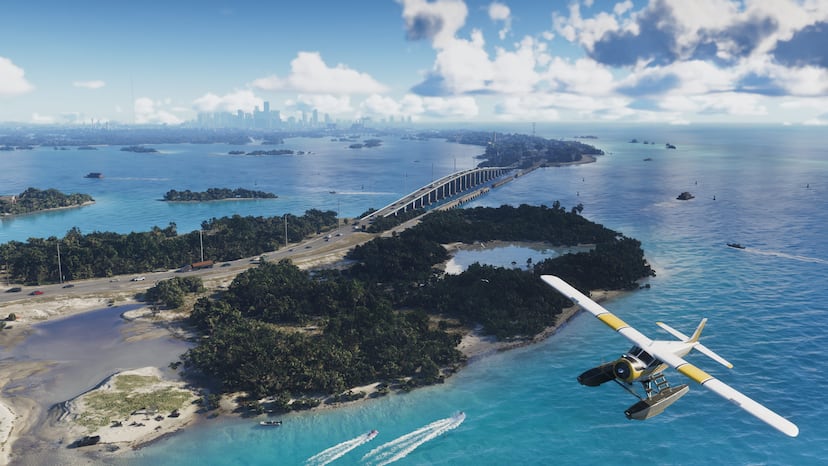
A seaplane flies above turquoise water beside islands and a long bridge in the Leonida Keys.Images: Rockstar Games
GTA VI · Console setup

GTA 6 3D audio and headset setup on PS5

Select your PS5 headset output, adjust volume, then create a personalized 3D Audio profile or choose a preset before playing GTA VI.

Short answer

Sony lists Tempest 3D Audio for GTA VI on PS5. Prepare your headset through the console’s Sound settings: select the output device, then configure headphone 3D Audio. This guide covers console setup, not GTA VI mix sliders or tested headset performance.

Check output and headset compatibility

Switch Output Device Automatically lets PS5 change output when an audio device connects. You can also select the output from Sound in the control center. If the headset is missing, check its maker’s PS5 compatibility instructions; not every device works with the console.

Sources: [4]

Choose a headphone profile

Select Create Personalized 3D Audio Profile and answer the sound-position prompts, or choose one of five presets. Apply Personalized 3D Audio Profile uses your saved result; switching it off returns to the preset.

Enable 3D Audio for Headphones switches between 3D processing and stereo. Compare at a comfortable volume; no single profile suits everyone.

Sources: [3]

What the GTA VI feature listing establishes

The confirmed Tempest feature does not reveal GTA VI’s audio-menu options or how an individual headset will perform. For the wider PS5 feature list and PS5 Pro information, use the linked platform guide.

Sources: [2]
Your next steps

  1. Connect a compatible headset and choose it under Settings > Sound > Audio Output > Output Device.
  2. Set a comfortable headphone volume under Settings > Sound > Volume.
  3. Open Settings > Sound > 3D Audio (Headphones) and choose a personalized profile or preset.
  4. Compare 3D audio with stereo and keep the sound you prefer.

Sources

Based on published sources; not tested in the game.